Invite the people who will make and take calls. Each person gets an email with a link to join your workspace, and you choose their role and phone numbers before you send it.
Before you start
- Your role: inviting people is for the workspace Owner and Admins.
- Licenses: during the free trial you can invite as many people as you like. After the trial, each person needs a license, and a pending invitation reserves one. If no license is free, the Invite Users button is disabled. See Plans, licenses and your free trial.
Send invitations
- In the sidebar, click Users, then click Invite Users.
- In Email, enter the person’s work email address.
- In Role, choose Agent, Supervisor or Admin. Agent is selected by default.
- Optional: in Phone numbers, choose the numbers this person will use.
- Click Add. The person appears under People to invite.
- Repeat for everyone you want to invite.
- Click Send invite (or Send … invites).
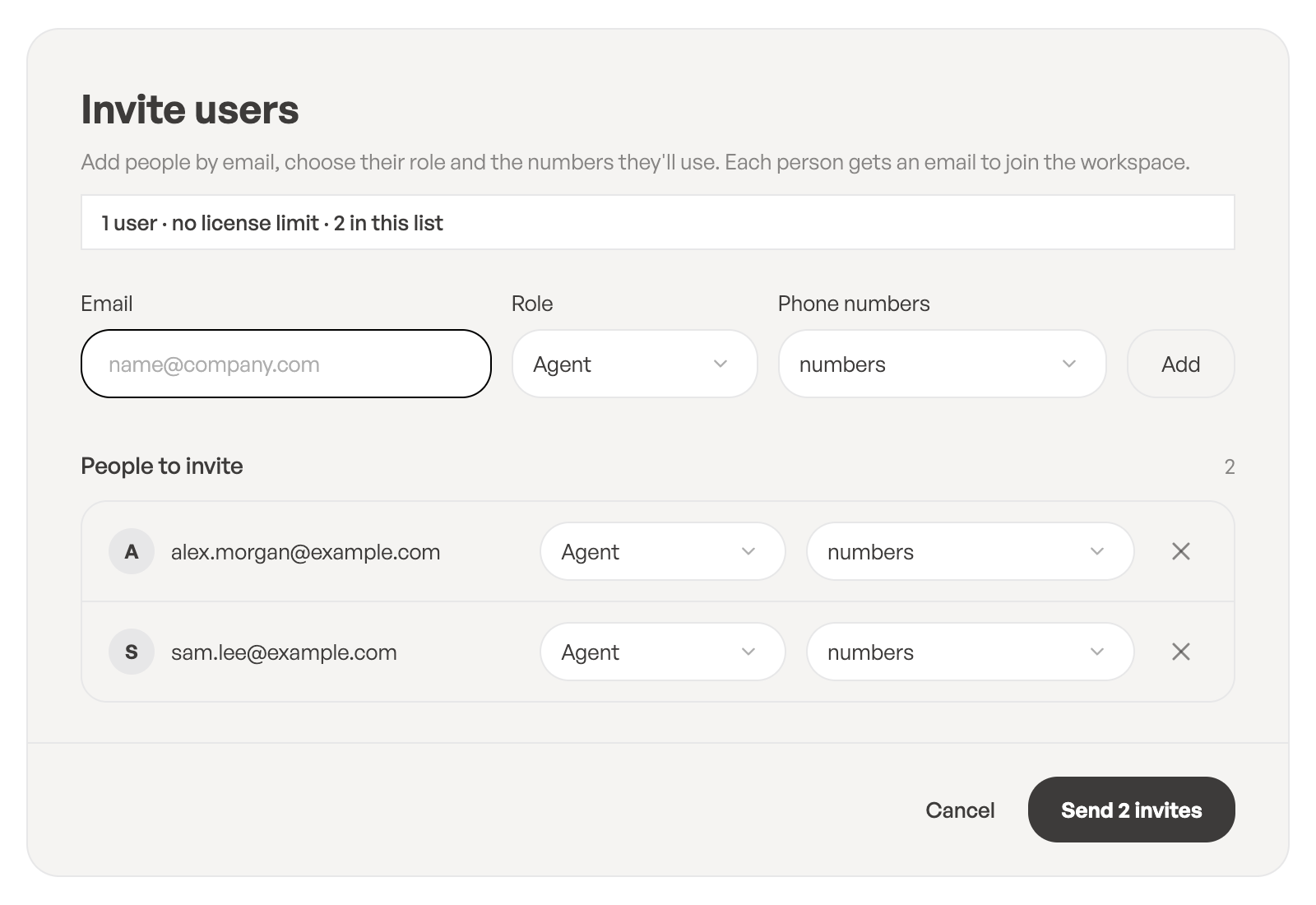
You’ll see Invitations sent. If you try to leave the page before sending, ToCaller asks Leave without sending? so you don’t lose the list by accident.
What the invited person does
- They receive the email You’re invited to … on Tocaller and click Accept invitation. The link is valid for 7 days.
- On the Join … page (it shows your workspace’s name), their email address is already filled in. They choose a password in Password* and Confirm Password* and click Create Account. They’re signed in and go straight to the workspace.
- If they already have a ToCaller account with that email, they keep their current password: they click Join Workspace, see You’ve joined the workspace, then click Sign In and sign in as usual.
Check and resend invitations
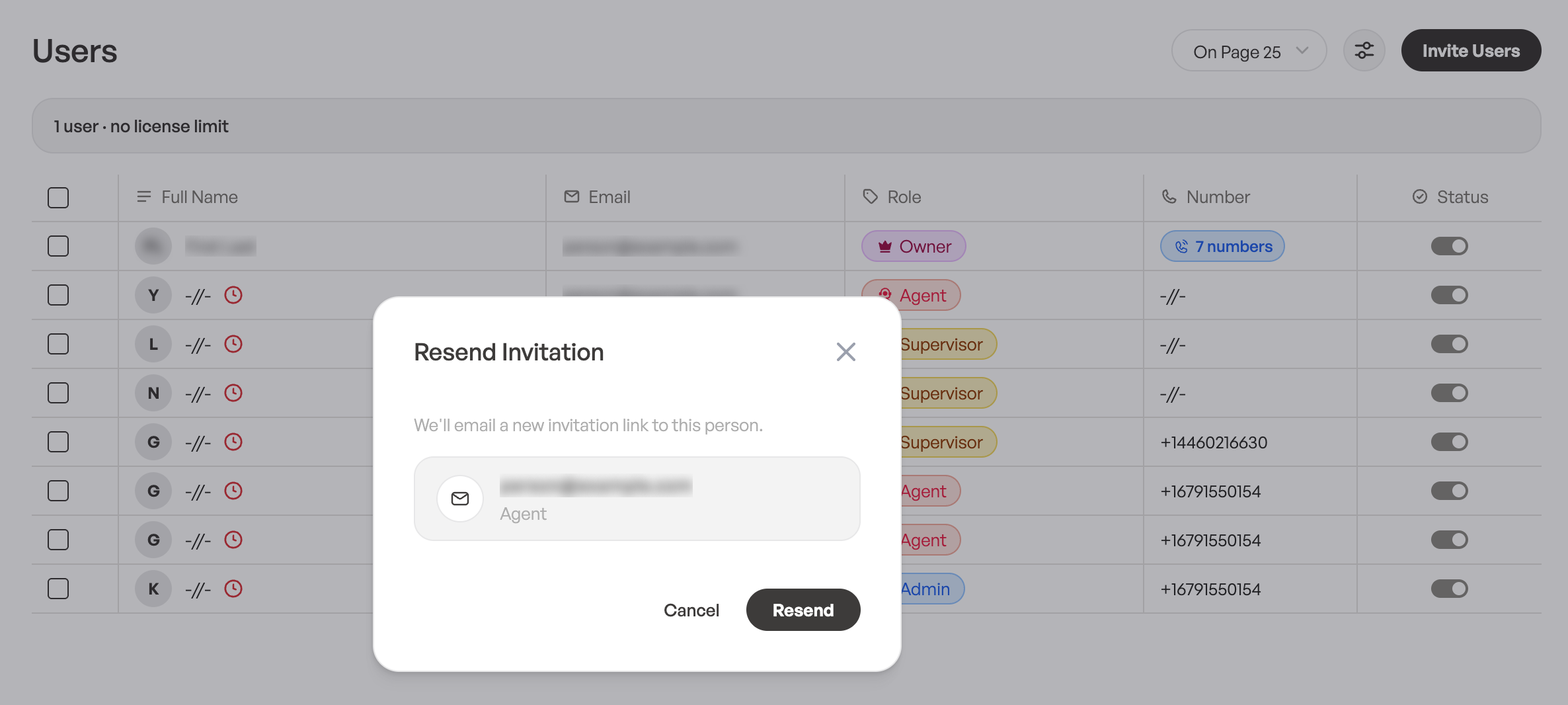
The Users list shows every member with their Full Name, Email, Role, Number and Status. An icon next to each person shows whether they have joined, or whether the invitation is pending or expired.
- To send a fresh link, click the pending or expired invitation icon, then click Resend. You’ll see Invitation resent.
- If someone opens an old or wrong link, they see Invitation link is no longer valid, with a message saying whether the invitation has expired, is invalid or was already accepted. Resend the invitation and ask them to use the newest email, or, if they’ve already joined, to sign in.
Pause or restore access
Use the toggle in the Status column to pause a person’s access to the workspace or give it back. Pausing doesn’t delete anything. You can’t pause your own access.