Teams group the people in your workspace, for example Sales or Support, so it’s easy to see who works where. A person can be in several teams.
Before you start
- Teams are managed by the workspace Owner and Admins.
- Teams only group people. They never change licenses, billing, roles or what anyone can access.
- Teams don’t decide who rings when a number is called. That’s set in the number’s call flow, with the Dial step. Its Prioritized ring groups are set up there, separately from teams. See Build a call flow.
See your teams
In the sidebar, click Teams. The list shows each team’s Team Name with its icon, the number of Members, a Members Preview with their pictures, and when it was Created. A team without people shows No members yet.
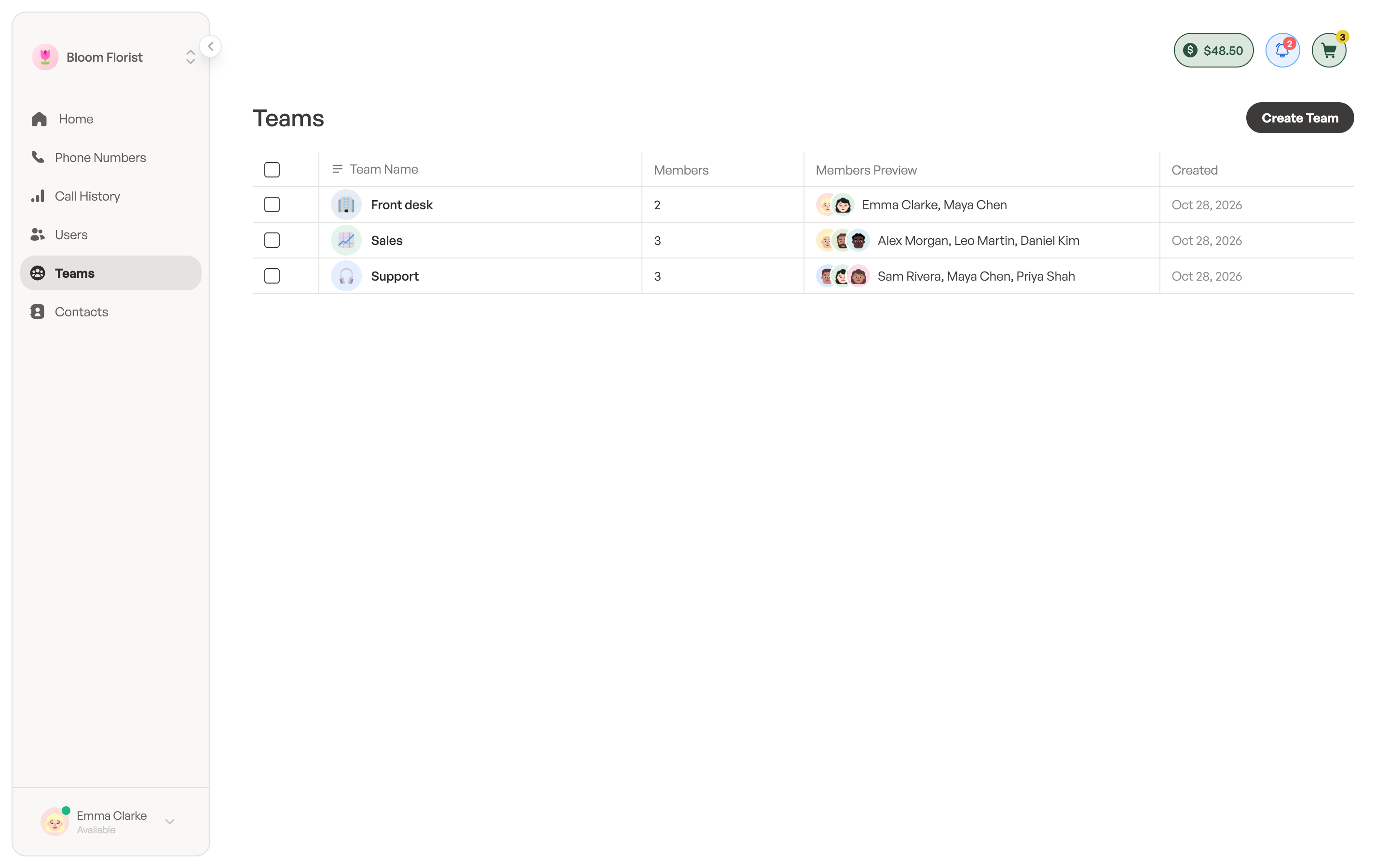
On the Users page, the Teams column shows the teams each person belongs to.
Create a team
- On the Teams page, click Create Team.
- In Create team, type the team’s name, for example Sales or Support.
- Optional: click the icon (Choose an icon) and pick one, so the team is easy to spot.
- Click Create.
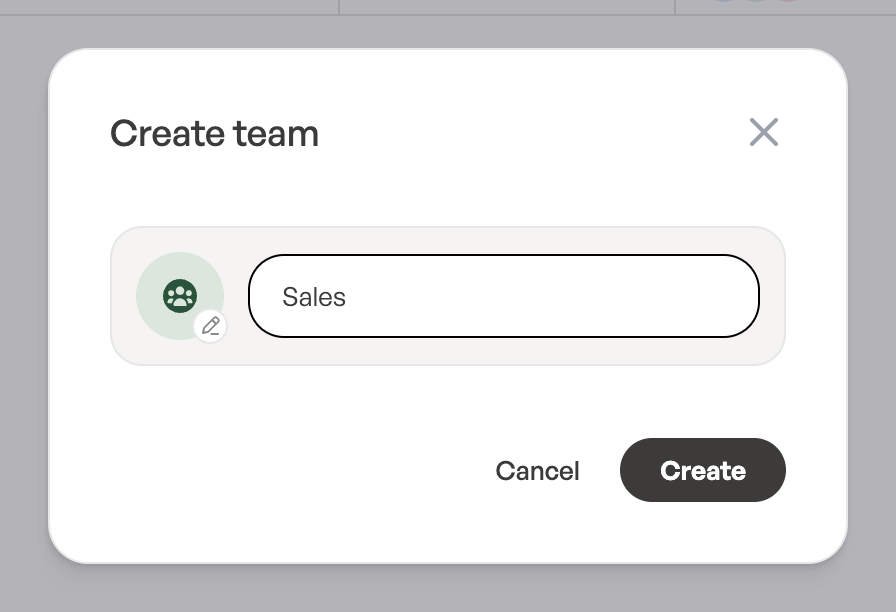
Each team in a workspace needs its own name. If the name is taken, you’ll see A team with this name already exists.
Add and remove members
- On the Teams page, click the team.
- Under Add users, type in Search workspace users by name or email and tick the people you want.
- Click Add (the button shows how many you’ve ticked). You’ll see Added to the team.
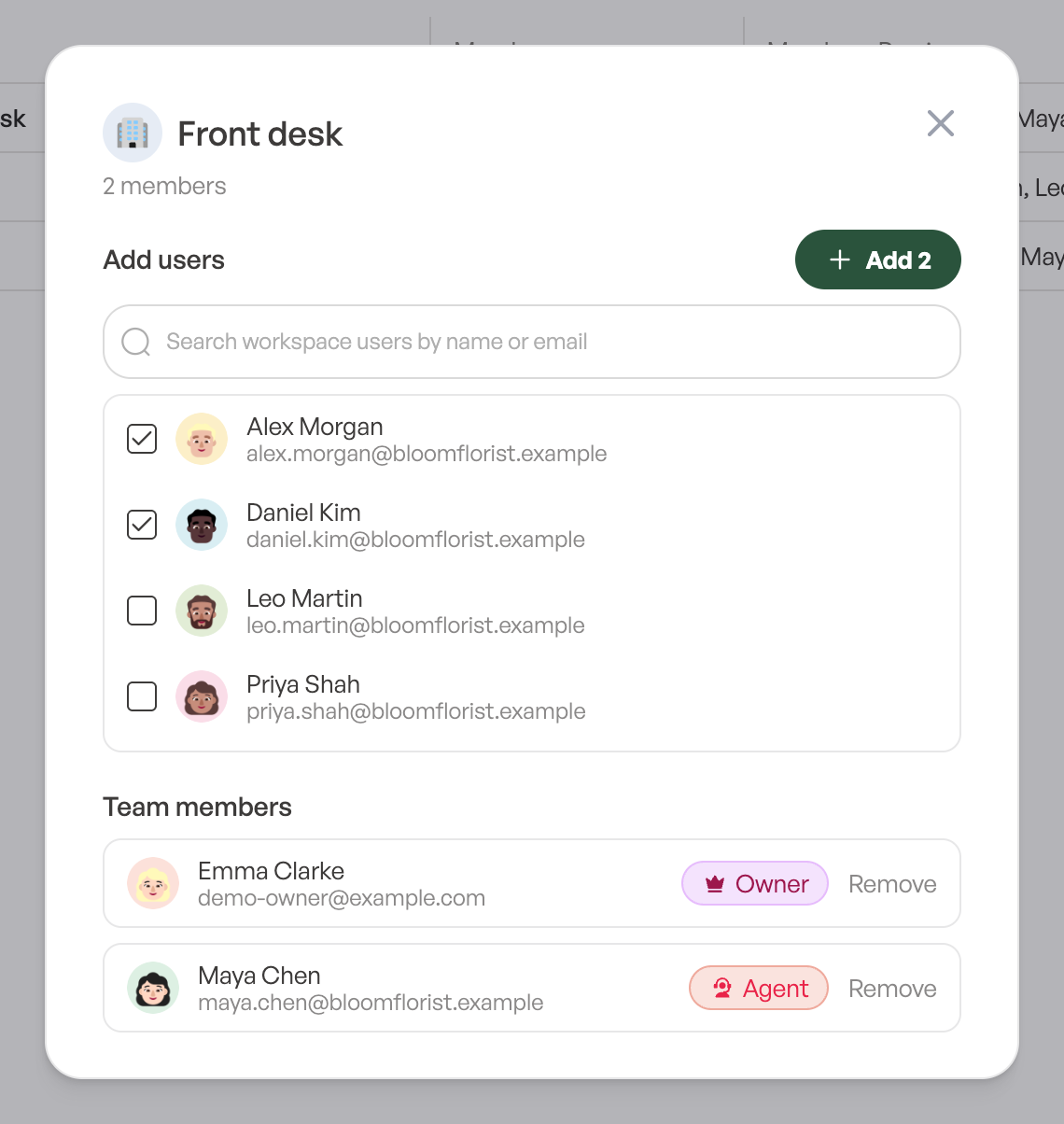
The people in the team are listed under Team members, with their role. To take someone out, click Remove next to their name. They stay in the workspace. An empty team shows No one is in this team yet. Add users above.
To add people to a team straight from the list, select the team and use Add users in the bulk actions.
Rename a team or change its icon
- On the Teams page, select the team and click Edit in the bulk actions.
- In Edit team, change the name or the icon.
- Click Save. You’ll see Team renamed.
Delete a team
Select one or more teams and click Delete in the bulk actions, then confirm. Only the teams are deleted. Their members stay in the workspace with their access and data.