On the Calls page, every contact your number talks to has one conversation. It shows all your calls and texts with them in order, with recordings, voicemails and transcripts. To open the Calls page, see Make and answer calls.
Find a conversation
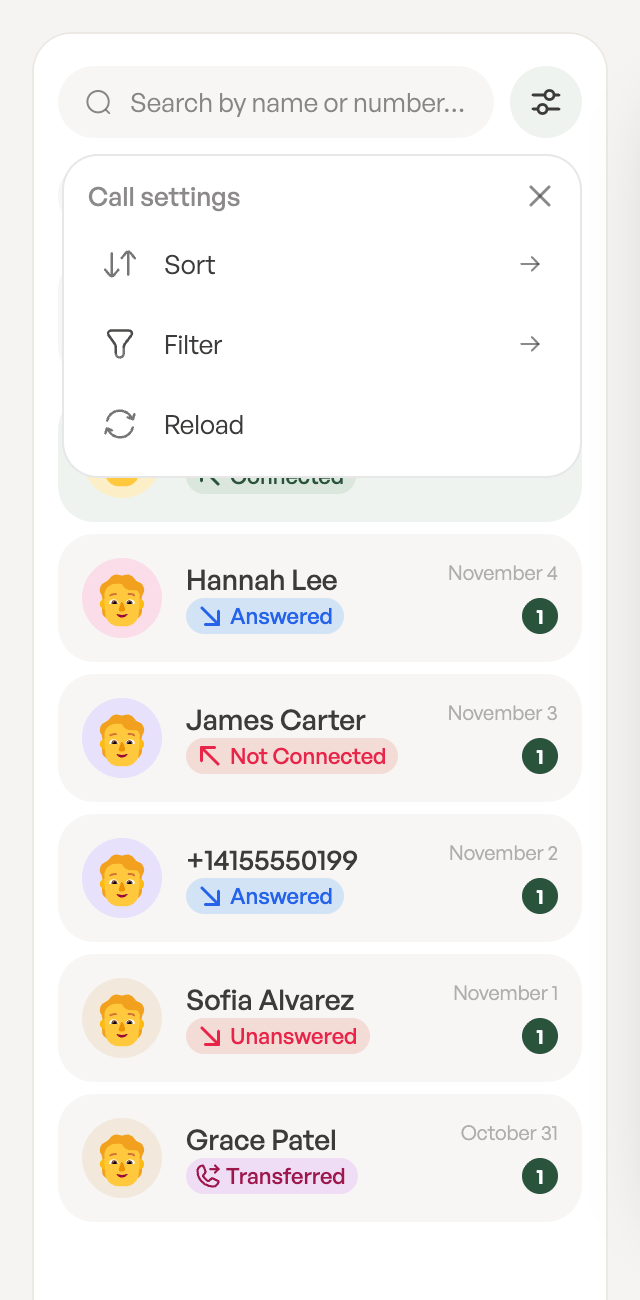
Your chats are listed next to the Phone numbers column, with the newest at the top. Each one shows the contact’s name or number, the latest call status, such as Answered or Unanswered, and how many new items you haven’t seen.
- Use the tabs to show All, only Texts or only Calls.
- Type in Search by name or number… to find a contact.
- A call that’s happening now shows Call in progress….
Open the Call settings menu above the list for more:
- Sort: Most recent at the top or Most oldest at the top.
- Filter: show conversations from a Date range or for certain Numbers. Click Reset to clear it.
- Reload: refresh the list.
Read the conversation
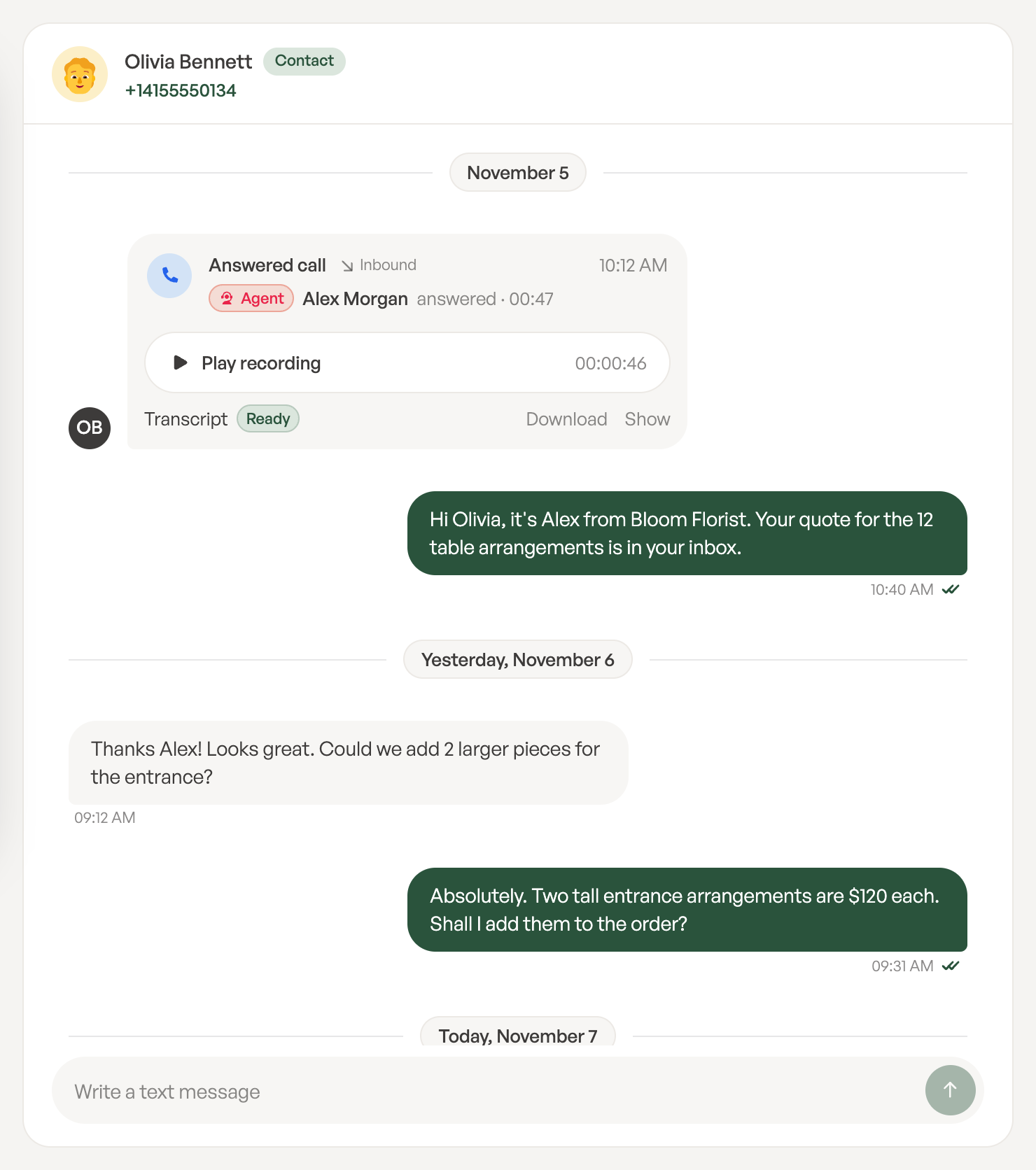
Click a chat to open it. Calls and texts appear in the order they happened, grouped by day.
- Each call shows whether it was answered, its direction (Inbound or Outbound), the time and how long it lasted.
- A label shows who was on the call: You, the Contact, or a teammate with their role.
- Voicemails the caller left play right in the conversation.
Click Contact at the top of the conversation to open the contact’s card, with their details and notes, over the conversation.
Send a text
- Open the conversation with the contact.
- Type in Write a text message at the bottom. A text can be up to 1,600 characters.
- Press Enter to send. To start a new line instead, press Shift+Enter.
The text is sent from the number of the Calls page you’re on, and its delivery status shows under it. To text someone you haven’t talked to yet, open their contact and click Message. See Manage contacts.
If a contact replies STOP, you’ll see This contact replied STOP. They get no texts until they reply START., and texting is turned off for them.
Listen to recordings and get a transcript
Recorded calls show a recording in the conversation.
- Click Play recording to listen. You can also download it.
- To get a written transcript, click Transcribe. The status shows Queued, then Transcribing, then Ready.
- Click Show to read the transcript and Hide to fold it away. Click Download to save it.
Calls are only transcribed when someone clicks Transcribe. If you see Transcription is turned off for this number., an Admin needs to turn on Transcribe calls in the number’s settings. If a transcript shows Failed, click Retry. See Phone number settings.
Keep notes on a contact
Notes help your team remember what was said. Everyone in the workspace can add them.
- In the conversation, click Contact, then open the Notes tab.
- Click Add Note.
- Type a Note Title and the note itself. Use the emoji button to add an emoji.
- Click Save note.
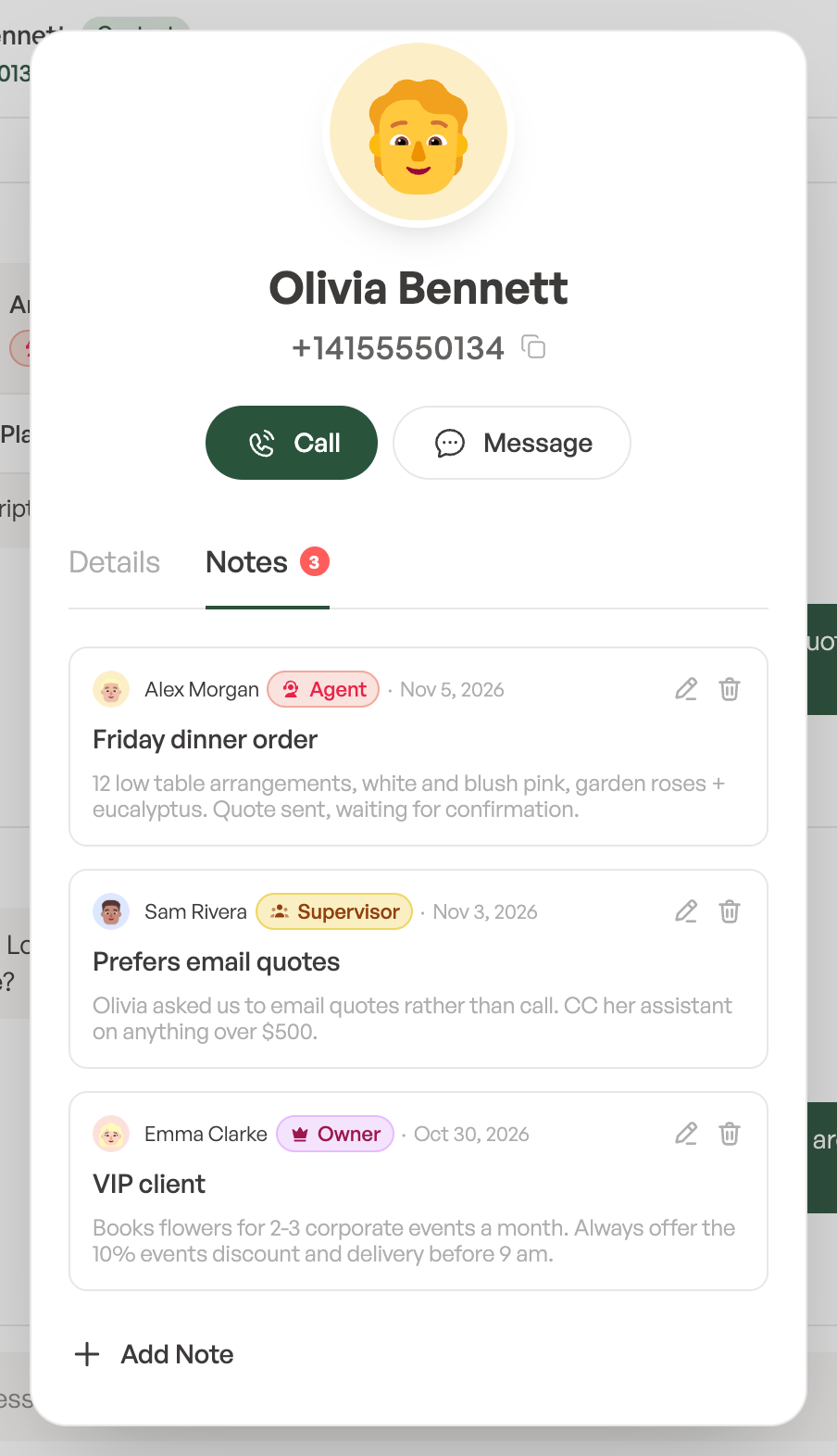
Each note shows who wrote it, with their photo, name and role. A contact can have up to 25 notes. A note can be changed or deleted by its author, or by an Admin or the Owner.
If the number has no saved contact yet, Owners and Admins can create one from this panel. Agents and Supervisors see No contact saved for this number. Ask an Owner or Admin to add one.