Contacts are the people and companies you call and text. When a saved contact calls, your team sees their name instead of a bare number. Contacts are shared by everyone in the workspace.
Who can do what
- The Owner and Admins can create, edit and delete contacts.
- Agents and Supervisors can see and search contacts, call and text them, and add notes.
Find a contact
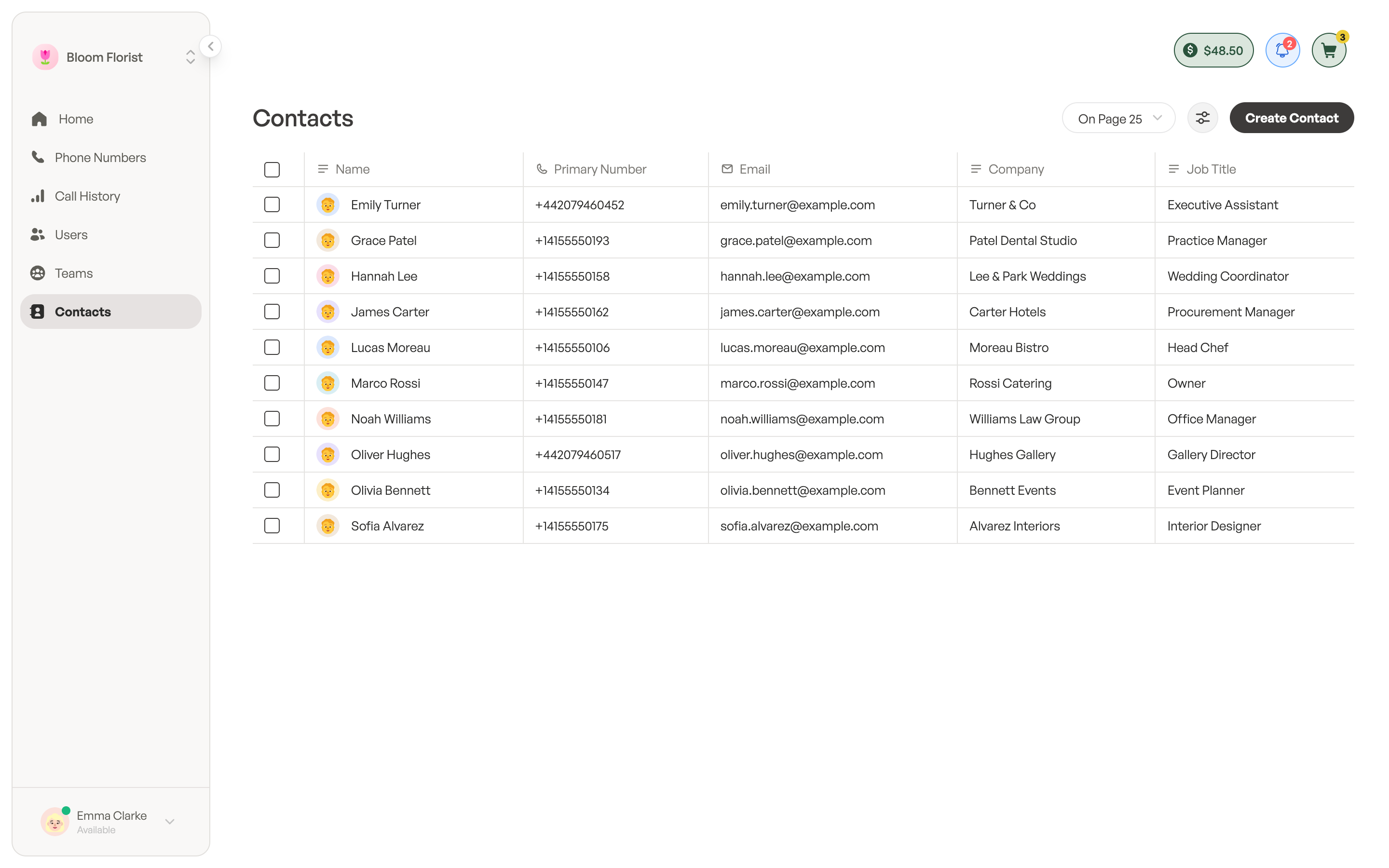
In the sidebar, click Contacts. The list shows each contact’s Name, Primary Number, Email, Company and Job Title.
- To find a contact, click Table settings and type in Search.
- Open Table settings to Filter, Sort, choose Columns or Reload the list.
- Choose how many contacts to show per page, from 10 to 100.
Create a contact
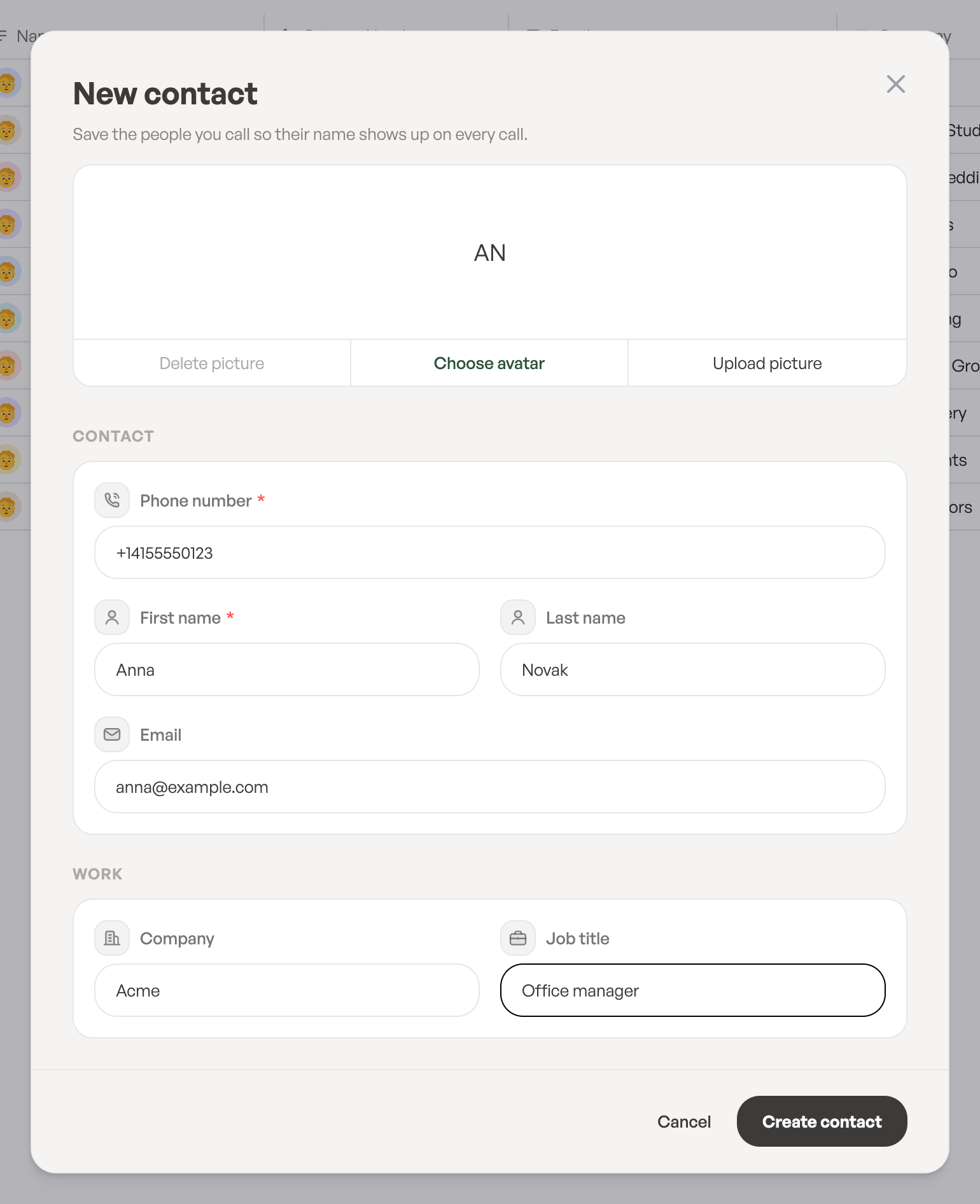
- On the Contacts page, click Create Contact. The New contact pop-up opens over the list.
- Under Contact, enter the Phone number with its country code, the First name and, optionally, the Last name and Email.
- Optional: under Work, enter the Company and Job title.
- Optional: add a picture. Click Upload picture to use a photo, or Choose avatar to pick a ready-made one. A ready-made avatar comes with a name, which fills in the name fields if they’re empty.
- Click Create contact.
Each phone number can belong to one contact only. If the number is already saved, you’ll see This number already belongs to …. Click Open contact to go to that contact instead.
Open a contact
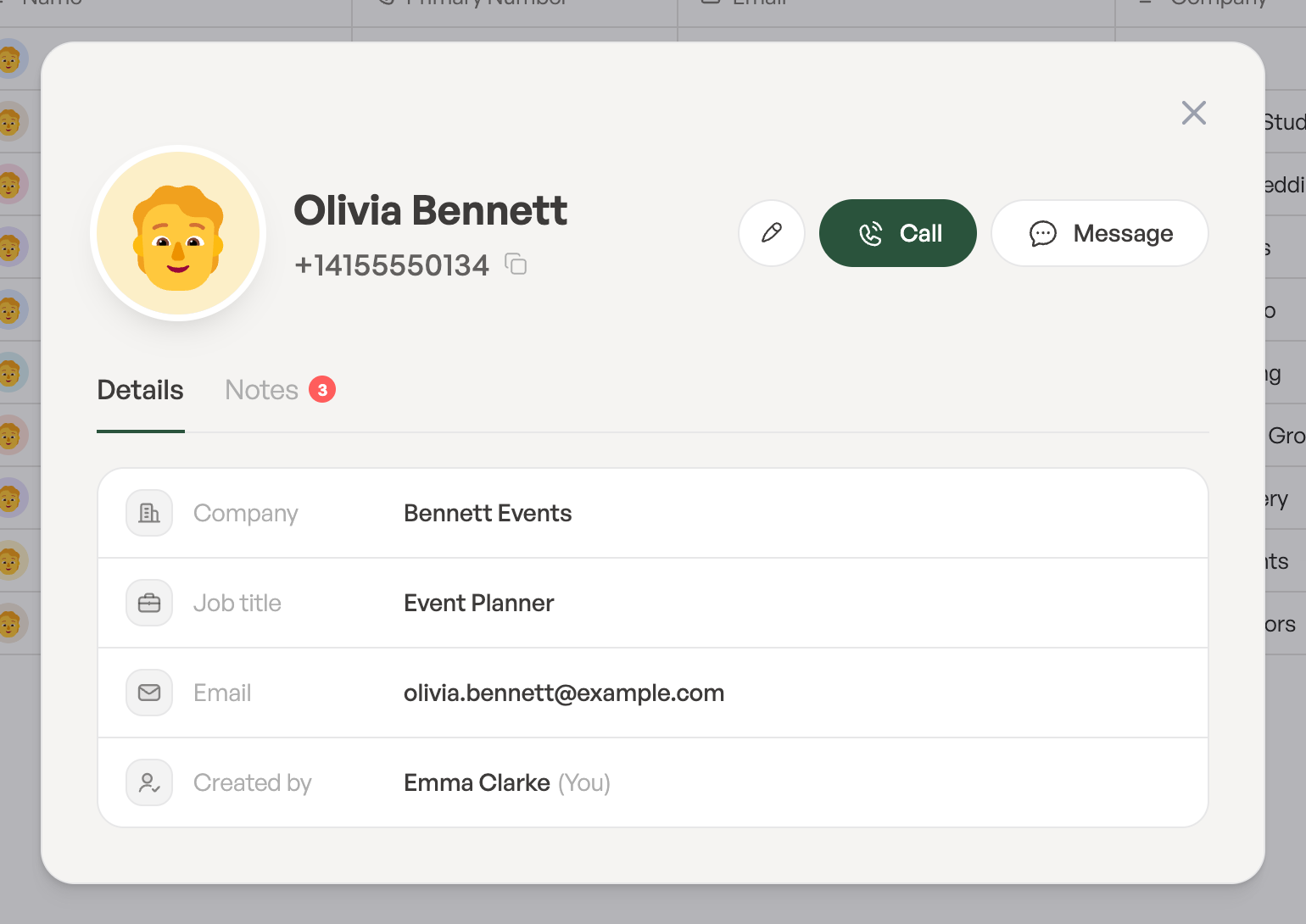
Click a contact in the list. Their card opens in a pop-up with their picture, name and number. Click the number to copy it.
- Call: opens the Calls page with the number ready in the phone.
- Message: opens the conversation with this contact on the Calls page, ready for you to type a text.
The Details tab shows the email, company, job title and who created the contact. The Notes tab shows your team’s notes. To add one, click Add Note, type a Note Title and the note, and click Save note. A contact can have up to 25 notes.
Edit or delete a contact
- Open the contact and click the edit button (Edit contact). The Edit contact pop-up opens.
- Change the details and click Save changes.
To delete the contact, click Delete contact in the same pop-up and confirm with Delete. The contact and its notes are deleted, and this can’t be undone.
You can also select contacts in the list and use Edit or Delete in the bulk actions. Delete removes all the selected contacts at once.
If you close the pop-up with unsaved changes, ToCaller asks Leave without saving? Click Stay to keep editing, or Leave to discard them.
Contacts on the Calls page
In a conversation on the Calls page, click Contact to see the contact next to your calls and texts. Owners and Admins can create or edit the contact right there. See Texts and conversation history.