You make and answer calls in ToCaller’s phone, right in your browser. The phone lives on the Calls page, next to your conversations, and can also float over every page.
Before you start
- You can call from and answer only the phone numbers linked to you. If you aren’t on any number yet, ask the workspace Owner or an Admin to add you. See Assign phone numbers to users.
- Allow ToCaller to use your microphone when your browser asks.
- Calls work in up-to-date desktop and mobile browsers. If yours isn’t supported, ToCaller says so and asks you to open it in a supported browser.
Open the Calls page
- At the top right of the screen, click the green phone numbers button (the cart icon). The small badge shows how many numbers you’re on.
- Under Phone numbers, click the number you want to work with.
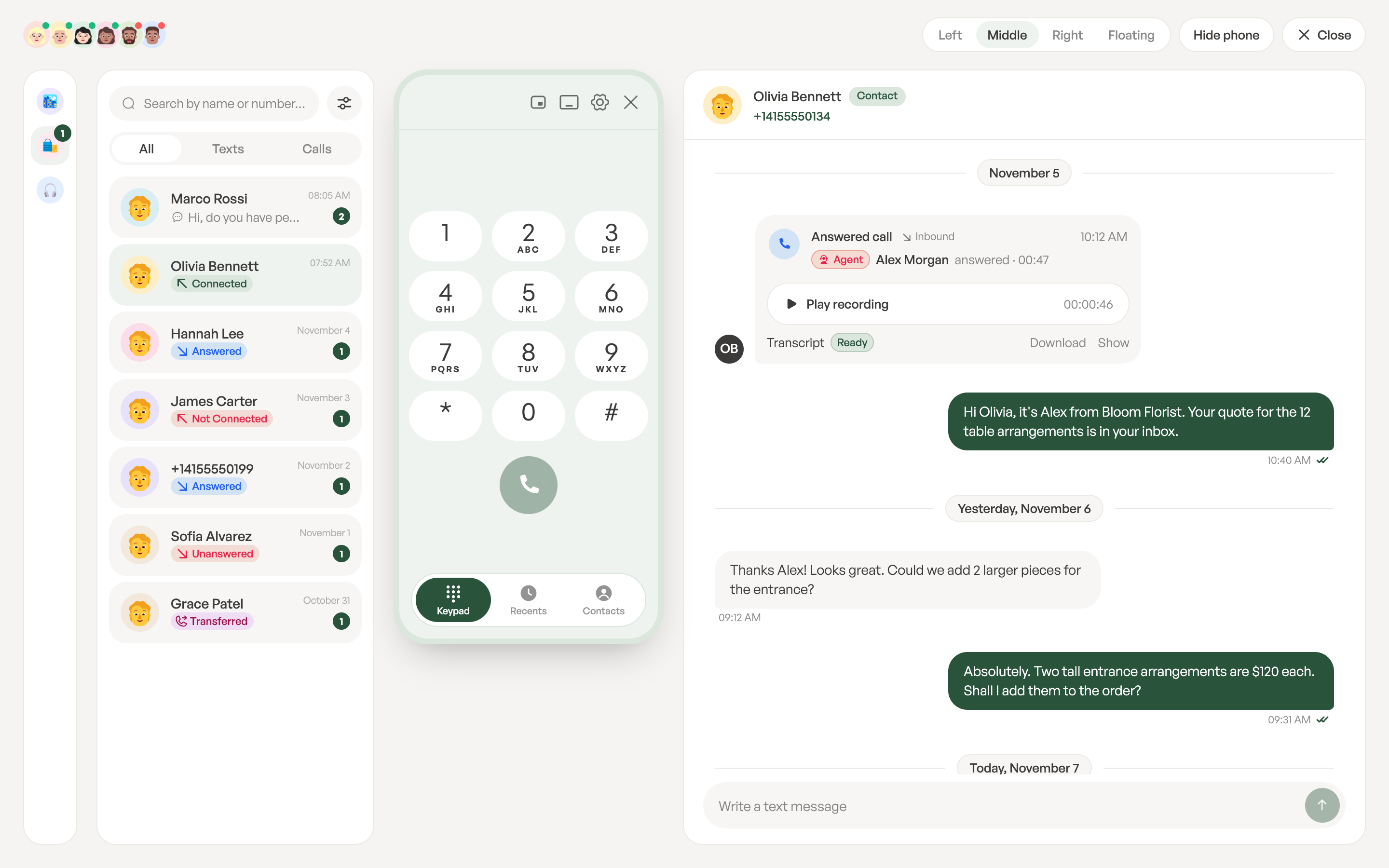
The Calls page opens for that number. You’ll see the Phone numbers column, your chats, the conversation you’ve selected and the phone. The avatars at the top show who else is on this number. Click another number in the Phone numbers column to switch. Click Close to leave the Calls page.
Choose where the phone sits
At the top of the Calls page, choose the phone’s position:
- Left: before your chats.
- Middle: between your chats and the conversation.
- Right: after the conversation.
- Floating: a window you can drag anywhere. It stays on screen on every page of ToCaller.
Click Hide phone to make room, and Show phone to bring it back. You can also switch between docked and floating from the phone itself with Float: drag anywhere, on every page and Dock to the Calls page.
On a phone or tablet, the Calls page shows one part at a time. Use the menu at the top to switch between your chats, the conversation and the phone. The phone can sit in the page (Middle) or float.
Make a call
- On the phone, open the Keypad tab and type the number with its country code. You can also paste it.
- Click the green call button (Start call).
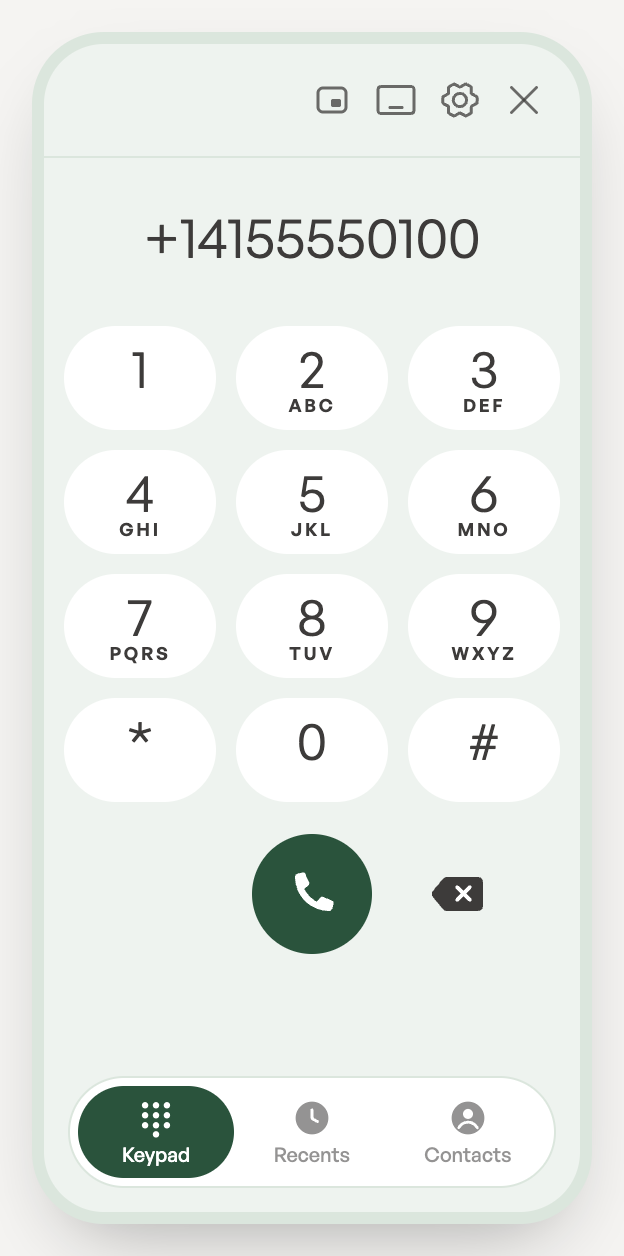
To call someone you’ve called before, open Recents and click the call. To call a saved contact, open Contacts, search, and click the contact. You can also click Call on a contact’s card. See Manage contacts.
While the call connects, the phone shows Calling, then Ringing. To stop, click End. If the phone shows Connecting…, wait a moment: it’s getting ready to make calls.
Answer a call
When someone calls a number you’re on, the phone opens with Incoming call…, wherever you are in ToCaller. Click Accept to answer or Decline to reject it. To silence the ringing without answering, click Mute ringtone.
Calls that come in through a call flow ring only people whose status is Available. When you step away, choose Set as Away in the menu at the bottom of the sidebar. See Your profile, password and email.
During a call
- Mute / Unmute: turn your microphone off and on.
- Hold / Resume: put the caller on hold. The phone shows On hold.
- Keypad: press keys, for example to choose an option in another company’s phone menu. Click Hide to close it.
- More: record or transfer the call.
- End: hang up.
If your connection is weak, the phone shows Unstable.
Record a call
- During the call, click More, then Record. The button shows Starting… and then Stop, and the phone shows REC.
- To stop recording, click Stop. The recording shows Saving… and then appears in the conversation.
Calls are never recorded automatically. If the button is disabled with Recording is turned off for this number, an Admin needs to turn on Record calls in the number’s settings. See Phone number settings. Follow the recording laws in your area.
Transfer a call
- During the call, click More, then Transfer.
- In Transfer to, enter a phone number or an extension.
- Click Transfer, or Cancel to go back to the call.
You can’t transfer a call while it’s on hold.
Minimize the phone to a bar
Click Minimize to a bar at the top of the phone to shrink it to a small bar. You can drag the bar anywhere. During a call, the bar still lets you mute, hold, record and end the call. Click Expand to open the full phone again.
Choose your microphone, speaker and number
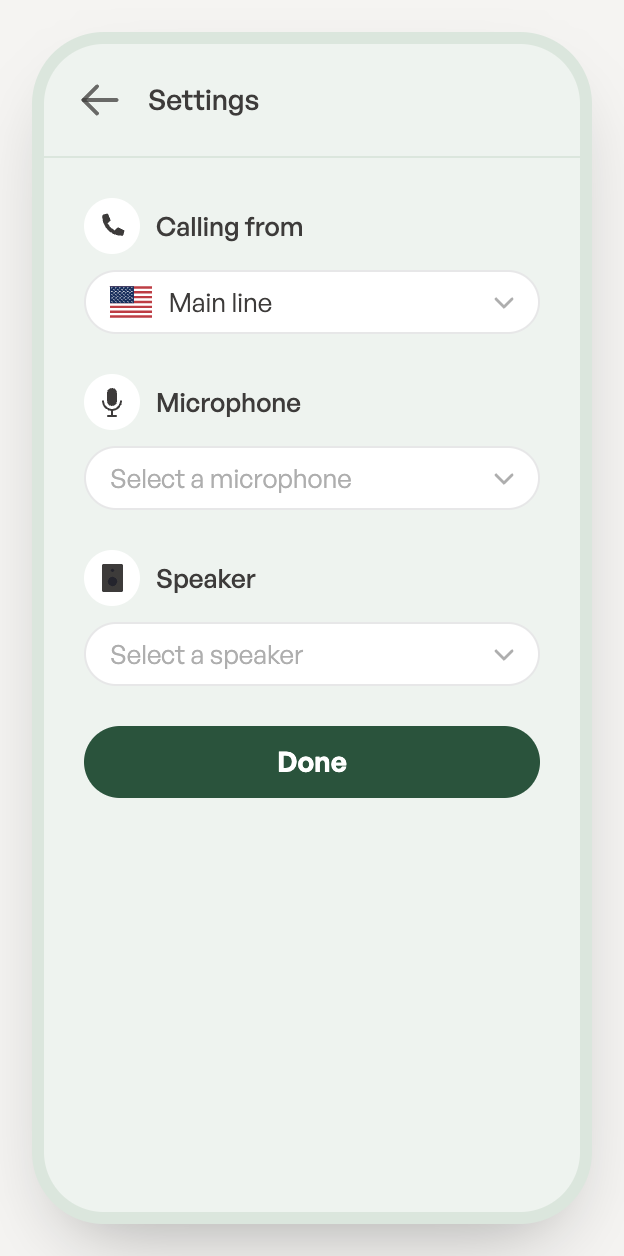
Click Audio settings at the top of the phone. Under Settings:
- Calling from: the number your outgoing calls show.
- Microphone and Speaker: the devices to use.
Click Done when you’re finished.
After a call
Your Owner or Admin may give you a short break after each call, so new calls don’t ring you straight away. The top of the screen then shows After-call work with the time left. If a Ready button is shown, click it to take calls again sooner.
Every call appears in the conversation with that contact. See Texts and conversation history.