Each phone number has its own settings: its name and icon, who makes and takes calls on it, whether calls can be recorded and transcribed, and how spam is screened.
Before you start
- Number settings are for the workspace Owner and Admins. Supervisors can see the Phone Numbers list but can’t change it.
- Changes apply to this number only.
Open a number’s settings
- In the sidebar, click Phone Numbers. The list shows each number’s Name, Number, Region, Type, Users, Call Flow and Status.
- Click the number. Its settings open in a pop-up over the list, with the tabs Users, Recording and Spam protection.
Name the number and choose its icon
- Click the name at the top and type a new one your team will recognise, for example Sales line.
- Click the icon (Choose an icon) and pick one that tags the kind of line it is. The icon shows next to the number across ToCaller, for example in the Phone numbers column on the Calls page.
Choose who uses the number
The Users tab lists the people who make and receive calls on this number.
- Click Add Users.
- On Add users, tick the people to add. The list shows each person’s User name, Role and Email. To tick everyone in the list, use Select everyone shown.
- Click Add user (or Add … users).
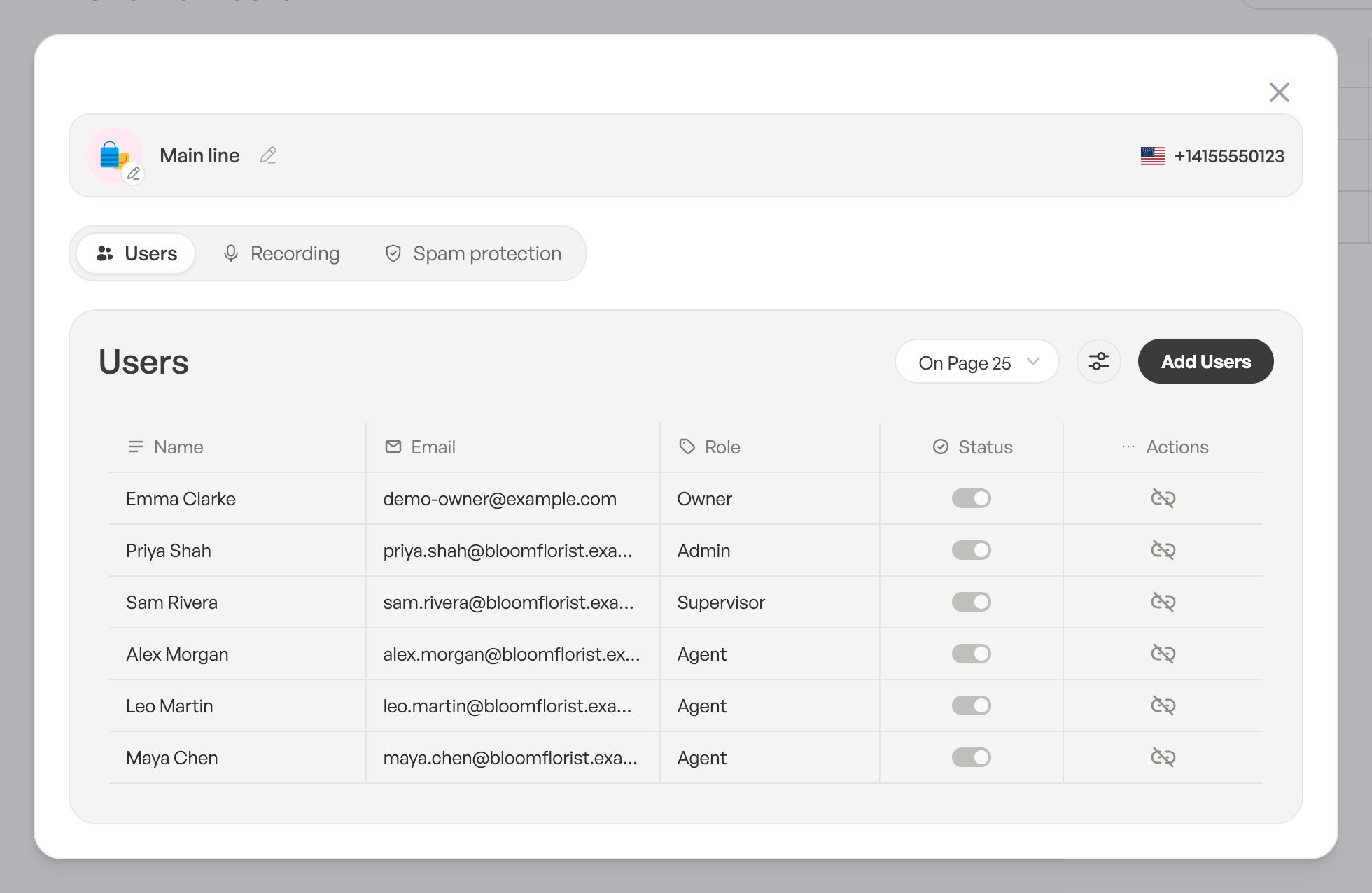
To take someone off the number, click the unlink button next to them (Unlink from this number), then click Unlink in the Unlink user dialog. They stay in the workspace. You can also link numbers from a person’s settings: see Assign phone numbers to users.
Recording and transcription
Open the Recording tab:
- Record calls: lets people record a call on this number with the Record button. Calls are never recorded automatically. Follow the recording laws in your area.
- Transcribe calls: lets people turn a saved recording into an AI-generated transcript with the Transcribe button. It needs Record calls turned on. Follow your local privacy rules.
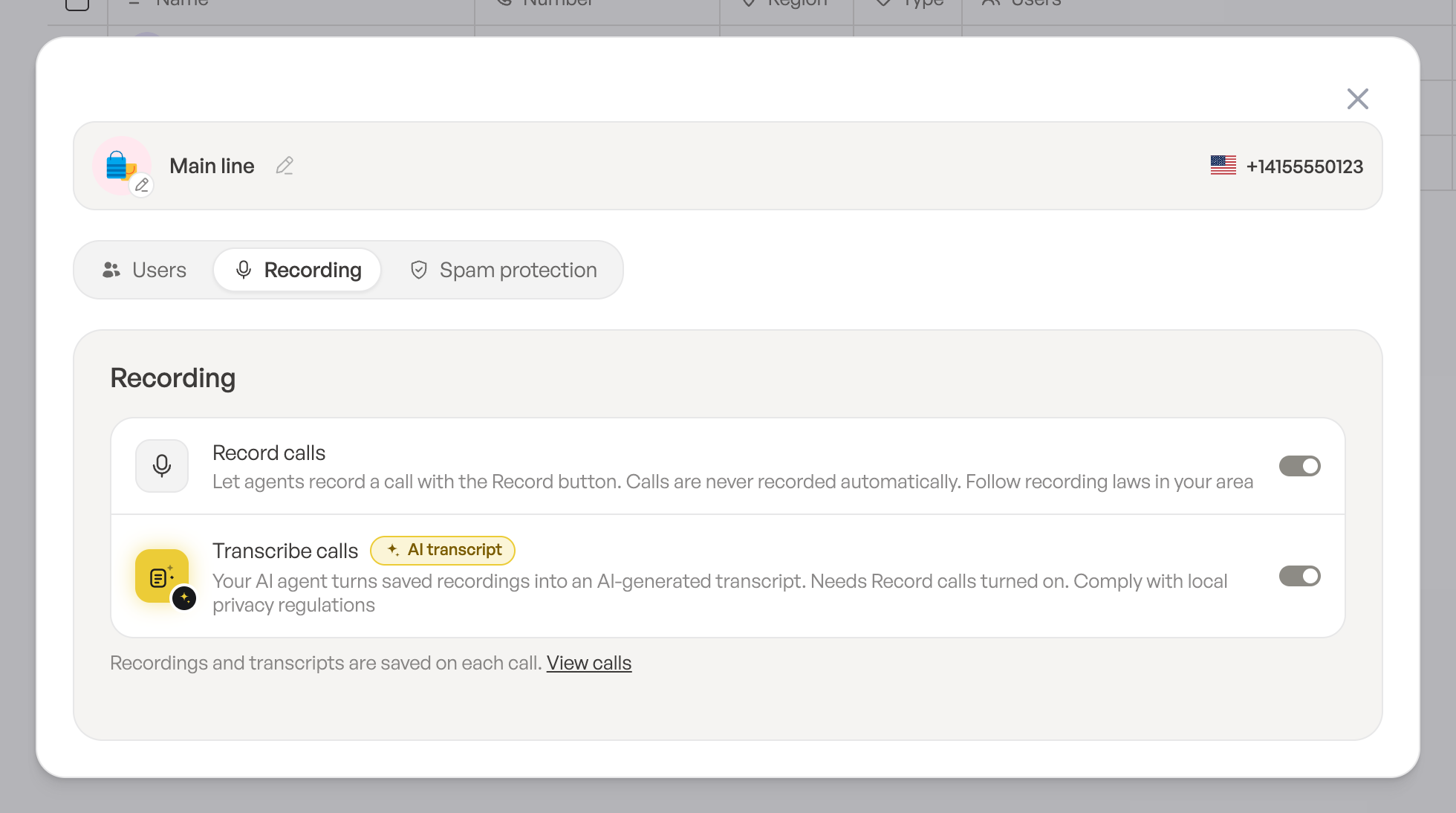
Recordings and transcripts are saved on each call. Click View calls to open this number’s Calls page. See Make and answer calls and Texts and conversation history.
Spam protection
Open the Spam protection tab:
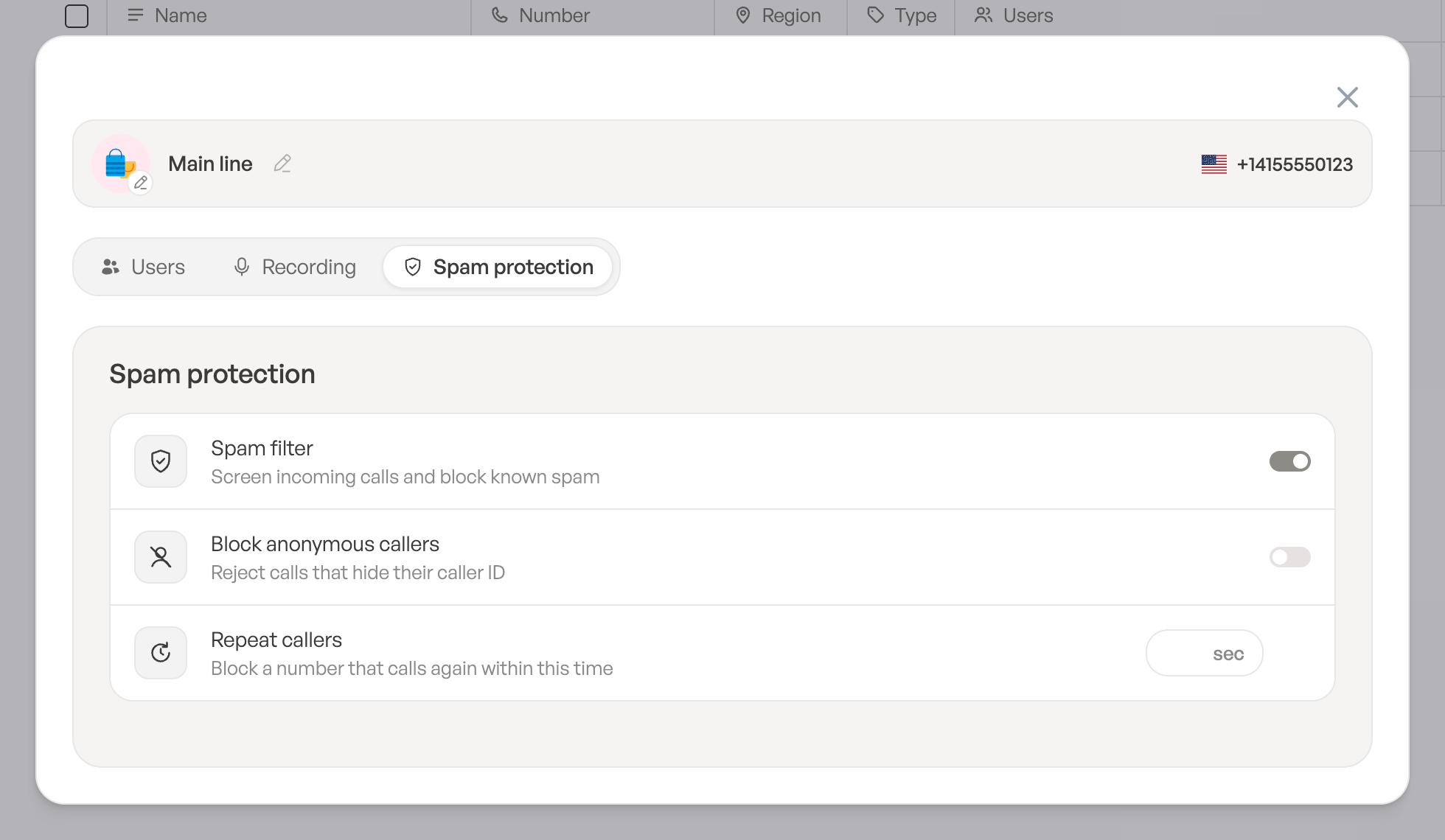
- Spam filter: screens incoming calls and blocks known spam.
- Block anonymous callers: rejects calls that hide their caller ID.
- Repeat callers: blocks a number that calls again within the time you set, in seconds.
Pause or delete a number
- To pause a number, or turn it back on, use the toggle in the Status column of the Phone Numbers list. You can also select several numbers and use Pause or Activate in the bulk actions.
- Only the Owner can delete a number from the workspace: select it and click Delete in the bulk actions. Its conversations, with all their texts and call history, are deleted too.
What callers hear
Who rings and what callers hear is set in the number’s call flow. In the Call Flow column, click Edit call flow (or + Configure if the number has no call flow yet). See Build a call flow.