This guide takes you from a new account to your first call, in the same order as the Getting started guide in ToCaller. Each step links to a detailed article. Your 7-day free trial lets you explore everything first, so you can take the steps at your own pace.
Open the guide in ToCaller
When you create a workspace, ToCaller opens the Getting started guide on Home once by itself. To open it again, go to Home and, under Help & resources, click Getting started. Click Next to go to the next step and Back to return. On the last step, click Done.
1. Create your account
Sign up with your email or with Google, and confirm your email with the 6-digit code. See Create your ToCaller account.
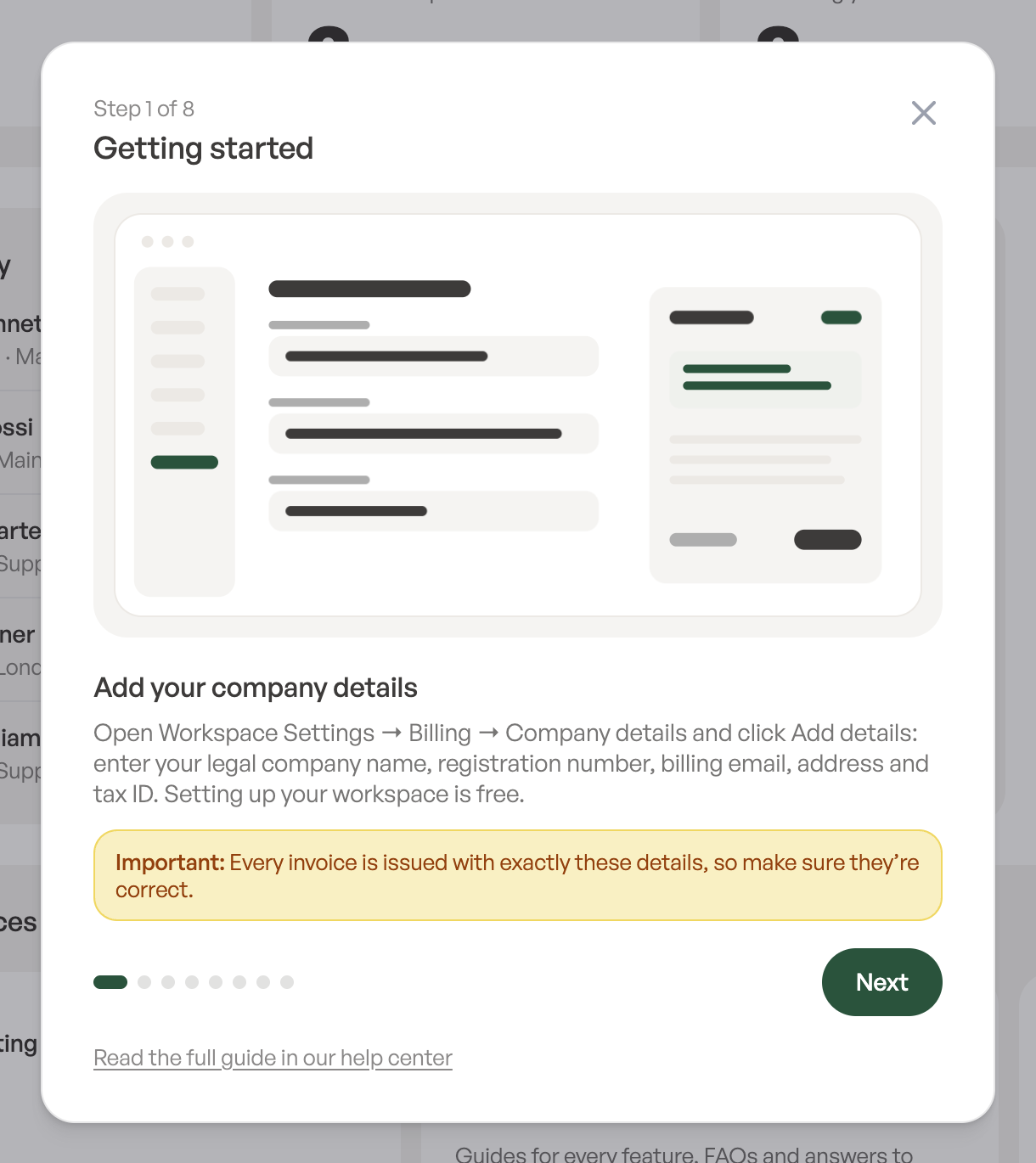
2. Add your company details
ToCaller sells to companies, and every invoice is made out to your company. Add your legal company name, registration number, billing email, address and tax ID before you choose a plan or add funds. See Set up payments and verify your identity.
3. Choose your plan
During the free trial you can invite as many people as you like. When you’re ready, choose a plan and the number of licenses in Workspace settings → Plan, and pay with your card. See Plans, licenses and your free trial.
4. Top up your balance
Your balance pays for phone numbers and calls. The first time you add funds, ToCaller asks you to verify your identity with an ID document and a quick selfie. See Add funds to your balance.
5. Buy phone numbers
Pick a country and a number type, choose a number and buy it from your balance. It’s ready for calls right away. See Buy a phone number.
6. Invite your team and share numbers
Invite Admins, Supervisors and Agents, then give each number to the people who will use it, yourself included. See Invite your team and Assign phone numbers to users.
7. Decide where incoming calls go
Set up a call flow for each number, so incoming calls ring the right people. Add business hours, a menu or the AI agent when you need them. See Build a call flow.
8. Make your first call
Click the green phone numbers button at the top right, choose a number and use the phone to call. Calls, texts and recordings all show up on the Calls page. See Make and answer calls.